Feature Guide
LocoBase Features — the complete Windows multi-terminal
Vertical tabs, split panes, shell switching, native ConPTY, a built-in browser and a file explorer. A closer look at every feature for running many terminals at once on Windows, and how each one helps with Claude Code and AI-assisted coding.
Why LocoBase
A Windows multi-terminal, rebuilt for AI-assisted coding
VS Code is built for developers writing code. LocoBase is built for developers running alongside Claude Code while it writes.
As you lean more on Claude Code, the dynamic shifts — the AI is doing the coding, and you're managing sessions, reviewing output, and watching the project evolve. That calls for a different kind of workspace.
LocoBase was created to fill that gap. Multi-session tabs, a built-in browser pane, and a file explorer, all in one window. WPF native so it stays fast and light. Everything designed to keep you in flow while Claude Code works.
LocoBase is currently in open beta. Some known issues exist.
[Known Issue 1] Browser download warning
Because LocoBase does not yet have a code-signing certificate, browsers such as Edge and Chrome may show a warning like “LocoBase-win-Setup.exe is not commonly downloaded” when you save the installer. This is not caused by a virus or malicious software.
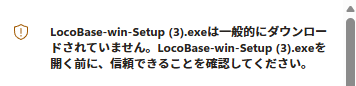
Workaround (Microsoft Edge)
- 1 After the download completes, click the … button in the download bar and select Keep.
- 2 If a confirmation dialog appears, click Show more → Keep anyway.
- 3 Run the installer as normal.
[Known Issue 2] False positives from antivirus software
LocoBase does not yet have an OV code-signing certificate. As a result, Windows Defender SmartScreen and some antivirus programs may flag it as an unknown application and block installation or automatic updates. This is not caused by a virus or malicious software — it is Windows’ default behavior for unsigned executables.
Workaround
- 1 If a SmartScreen warning appears during installation, click More info and then Run anyway.
-
2
If your antivirus quarantines or deletes files, add the LocoBase installation folder (default:
%LOCALAPPDATA%\LocoBase) to your exclusion list. - 3 If automatic updates are blocked, download the latest installer from this site and reinstall manually.
About malware risk
LocoBase installers are produced by an automated GitHub Actions build pipeline. Each release is built directly from a specific source-code commit with no manual step where a binary could be tampered with. This makes the risk of malware injection significantly lower than with manually distributed software. The build workflow is publicly visible on GitHub and can be audited by anyone.
The root cause of all these warnings is the absence of an OV code-signing certificate. Once we obtain one for the stable release, the browser warnings and SmartScreen prompts will go away entirely. We apologize for the inconvenience.
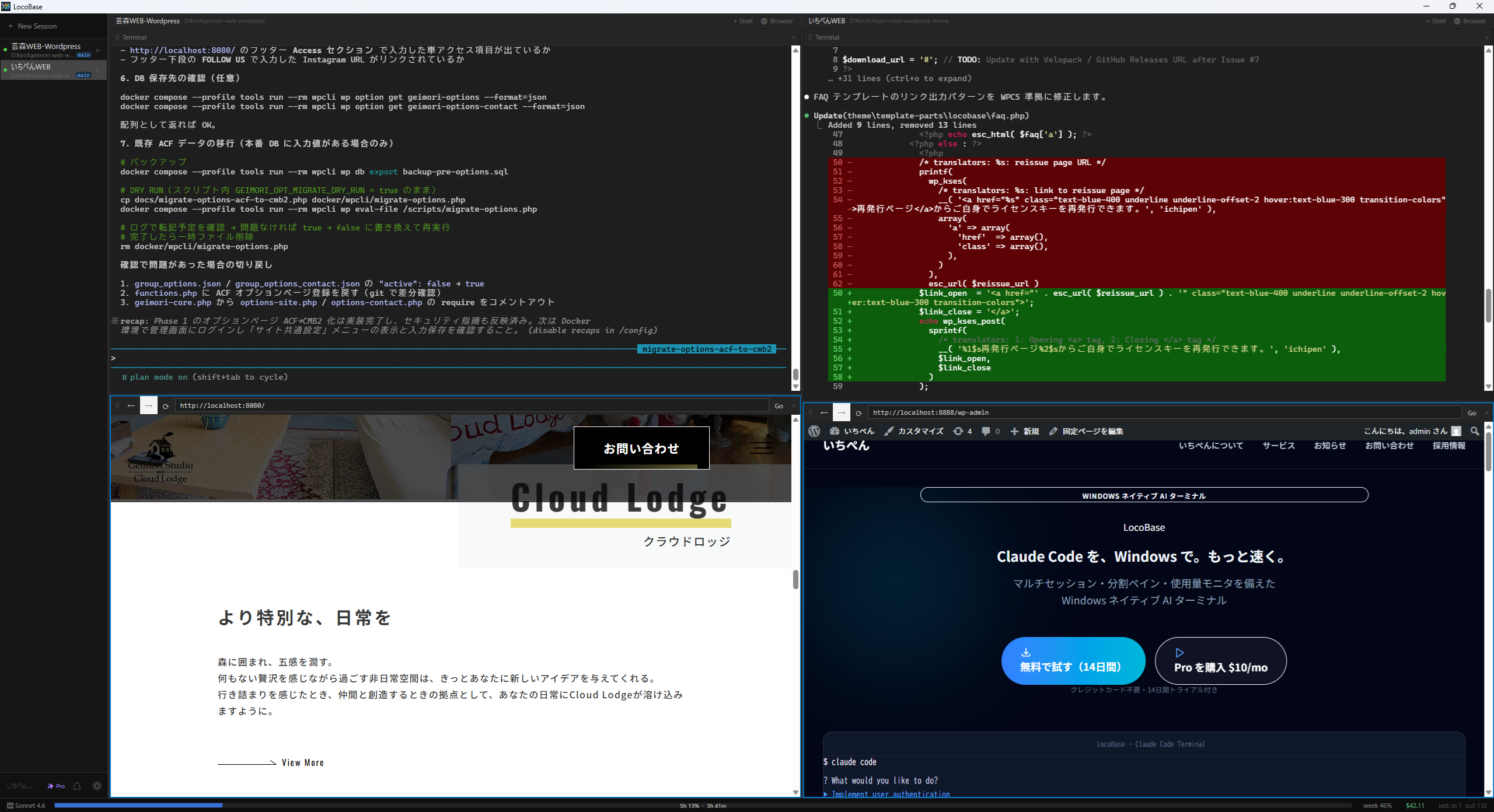
Multi-session Vertical Tabs
Run multiple projects side by side in one window
Switch between sessions using the vertical tab sidebar on the left. Each tab has its own shell process and working directory, so you can run a frontend and backend tab at the same time without mixing up your work.
Double-click a tab name to rename it. Use Ctrl+Shift+[ / ] to jump to the adjacent tab instantly.
Shortcuts
- Ctrl+Shift+[
- Previous session
- Ctrl+Shift+]
- Next session
- Each tab has its own working directory and shell process
- Double-click a tab to rename it
- Switch sessions with keyboard shortcuts
Native Windows Terminal (ConPTY)
A real terminal — WPF native, no Electron
No Electron. No Node.js. LocoBase is a WPF native app that calls the ConPTY API directly via P/Invoke, which means faster startup and lower memory use.
Rendering is powered by xterm.js v5.3.0 — 256-color, true color, and blinking cursor support. UTF-8 is configured automatically at launch so non-ASCII text renders correctly.
- Fully WPF native — no Electron or Node.js
- High-quality rendering via xterm.js v5.3.0
- 256-color, true color, and full UTF-8 support
- Fonts: Cascadia Mono / Cascadia Code / Consolas
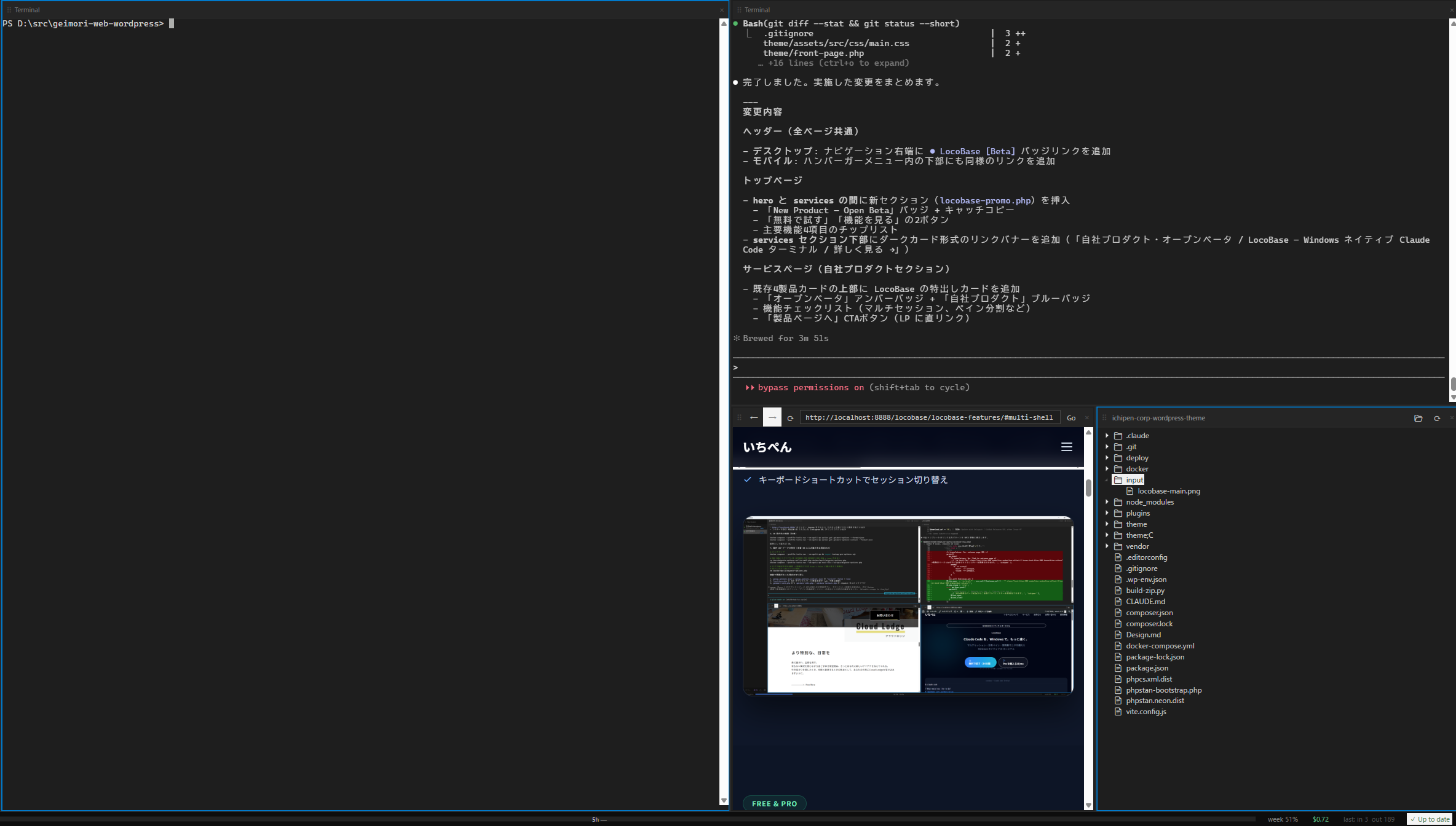
PowerShell / cmd / Git Bash / WSL
Use a different shell in each session
Click the Shell button in a tab's title bar to switch to any installed shell. LocoBase automatically detects PowerShell 7, Windows PowerShell, cmd, Git Bash, and WSL.
Keep a PowerShell tab and a WSL tab open at the same time — all within one window.
- Auto-detects all installed shells
- Supports PowerShell 7 / Windows PowerShell / cmd / Git Bash / WSL
- Each session can use a different shell
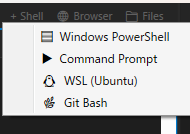
Horizontal & Vertical Split Pane
Divide one tab into as many panes as you need
Split a single tab horizontally or vertically. Run Claude Code on the left while you run commands and check output on the right — no more alt-tabbing.
Drag the separator to resize panes, and drag-and-drop to reorder them. Free supports up to 2 panes; Pro is unlimited.
Shortcuts
- Ctrl+Shift+\
- Vertical split (left / right)
- Ctrl+Shift+-
- Horizontal split (top / bottom)
- Ctrl+Shift+W
- Close active pane
- Ctrl+Shift+←→
- Move focus between panes
- Free: up to 2 panes / Pro: unlimited
- Drag the separator to resize
- Drag-and-drop to reorder panes
Built-in Browser Pane
Preview localhost right next to your terminal
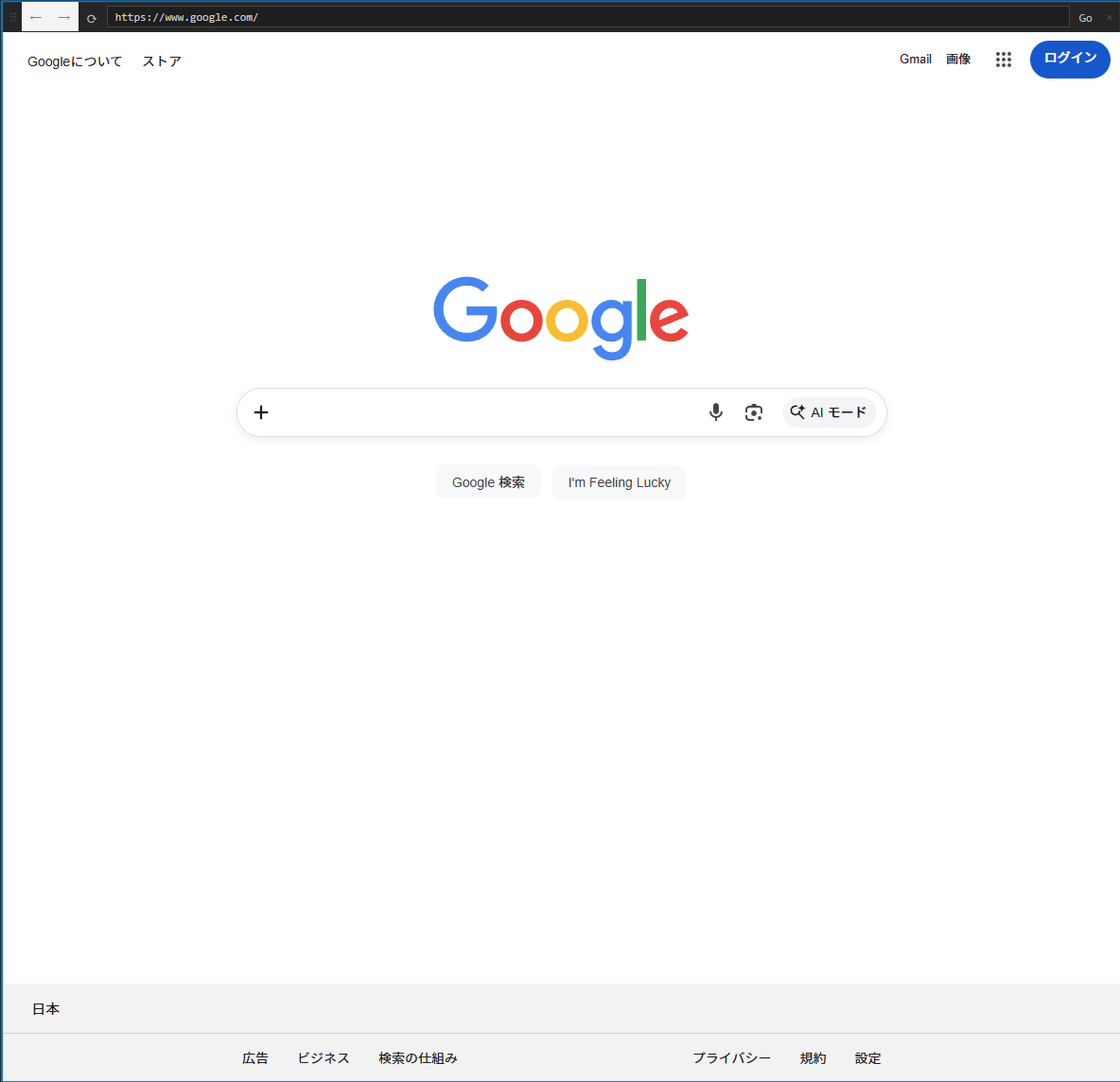
Open the browser pane with the 🌐 Browser button or Ctrl+Shift+O. Preview localhost alongside your terminal — no more switching windows just to see what Claude Code built.
The browser pane is draggable and repositionable. The toolbar includes back, forward, reload, and a URL bar.
Shortcuts
- Ctrl+Shift+O
- Open browser pane
- Preview localhost right next to your terminal
- Toolbar with back, forward, reload, and URL input
- Drag-and-drop to reposition like any other pane
File Explorer Pane
Browse your project file tree in real time
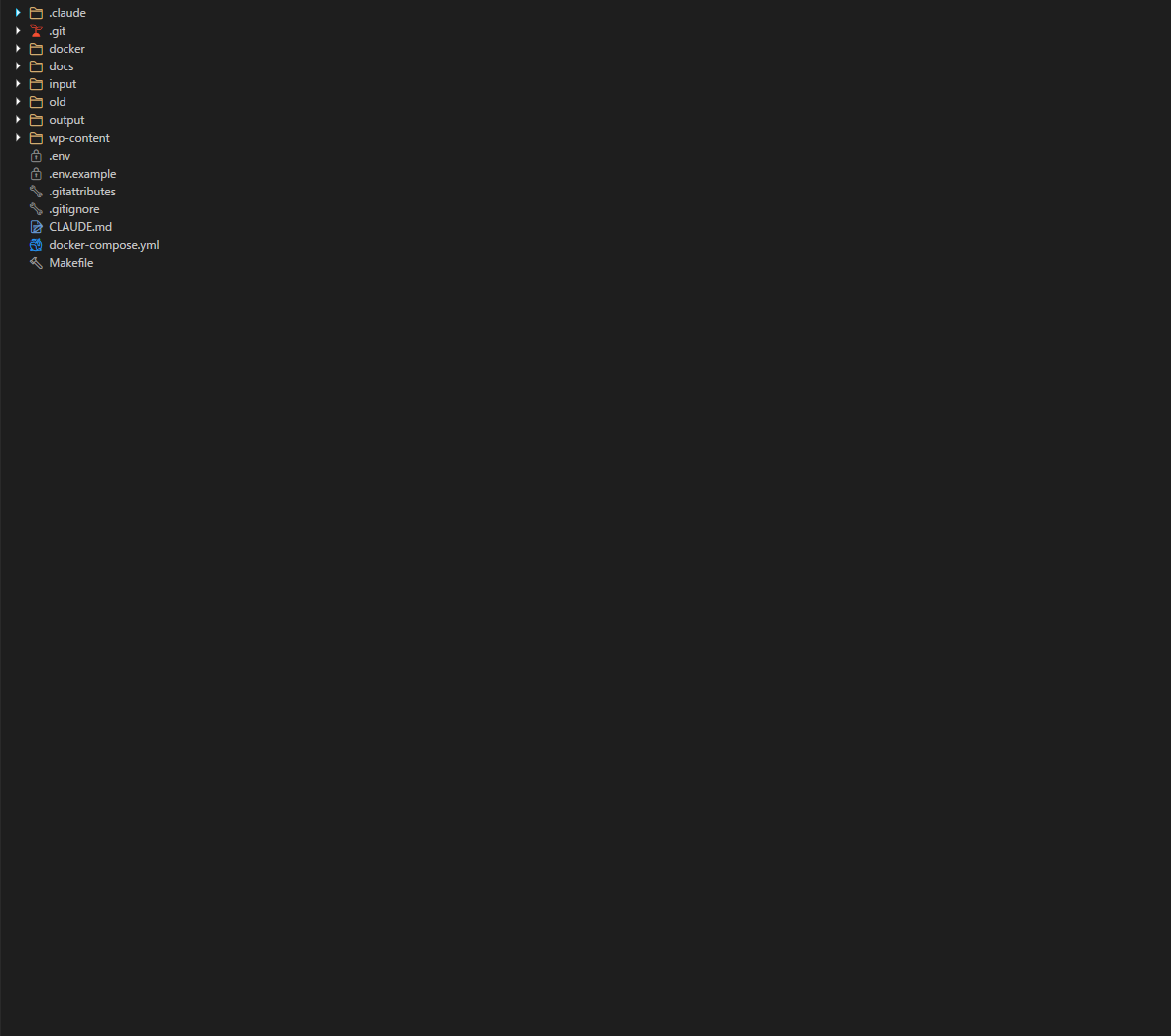
Open the file tree with the 📁 Files button or Ctrl+Shift+E. Rooted at your working directory, it reflects file creation, deletion, and renaming in real time.
Folders are lazy-loaded, so even directories with thousands of files (like node_modules) won't freeze the UI. Drag files from Windows Explorer to copy them in.
Shortcuts
- Ctrl+Shift+E
- Open file explorer
- Real-time file create / delete / rename
- Lazy-loading keeps large projects responsive
- Drag-and-drop from Windows Explorer supported
- Double-click a file to reveal it in Explorer
Named Pipes API / claudemux CLI
Control LocoBase from scripts and external tools
While LocoBase is running, a Named Pipe server starts automatically. Use the bundled claudemux.exe CLI to open tabs, send text, or list sessions — all from the command line.
Claude Code itself or any PowerShell script can drive LocoBase programmatically.
-
claudemux new-session <dir> -
claudemux send "<text>" -
claudemux list
Free / Trial / Pro License Management
Offline verification via ECDSA signature
Multi-session tabs, vertical tabs, and up to 2 split panes are free. The 7-day Trial gives you full Pro access, then reverts to Free automatically.
License keys are verified locally using ECDSA P-256 signatures and expiry timestamps, so LocoBase works without an internet connection.
- Free: multi-session tabs + up to 2 split panes
- Trial: full Pro features for 7 days
- Pro: browser pane, file explorer, Named Pipes API
- ECDSA P-256 signature + offline verification