コンテンツへスキップ
Multi-Terminal for Windows

LocoBase The multi-terminal for Windows. Tabs, split panes, many sessions at once.

Line up PowerShell, cmd, Git Bash and WSL in tabs, split the screen any way you like, and keep a browser and file explorer in the same window.
A native Windows terminal emulator with no Electron — built for Claude Code and AI-assisted coding.

No credit card required · 7-day free trial included

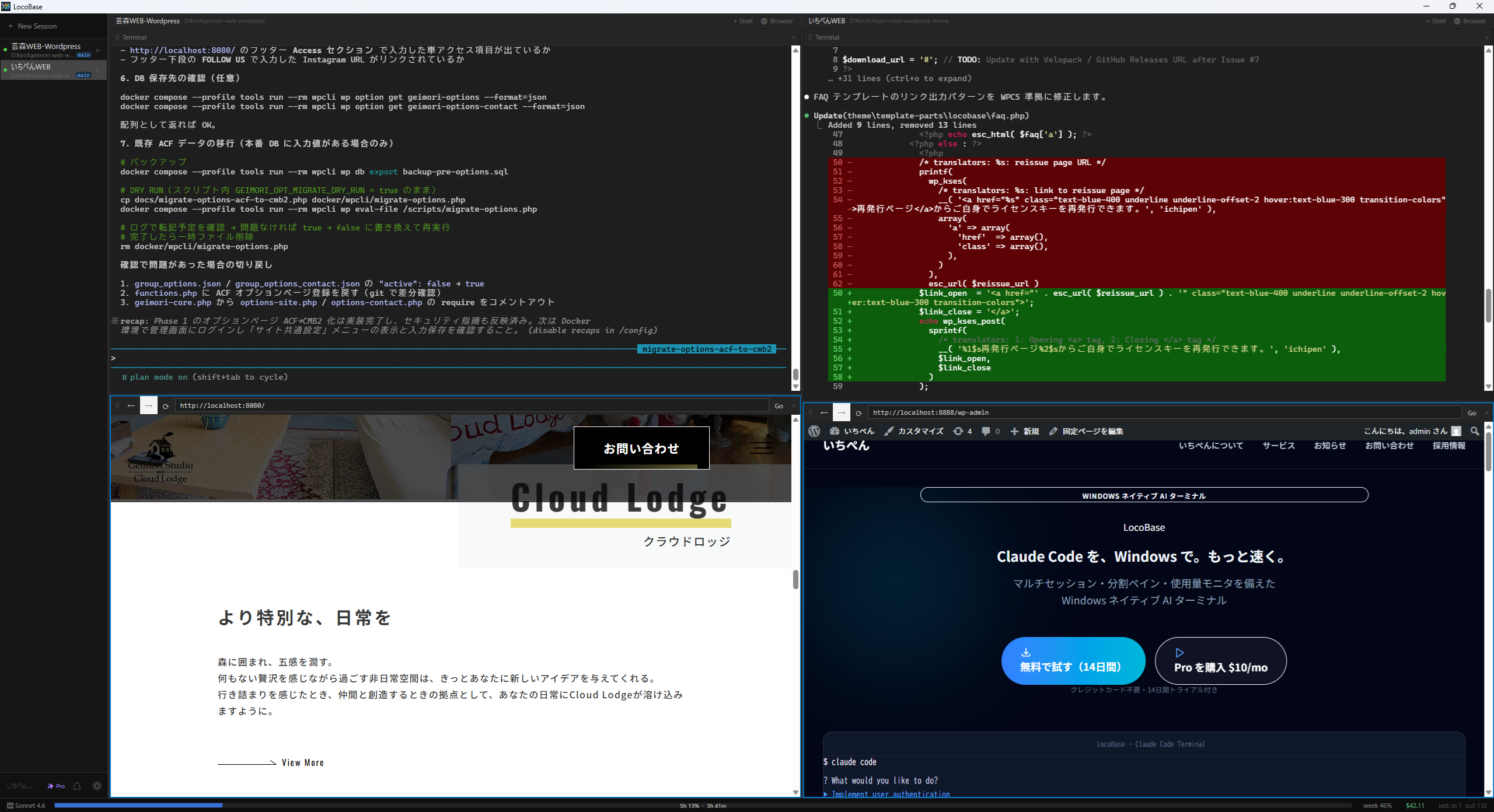
LocoBase — Windows multi-terminal with a vertical tab sidebar listing sessions and two terminals running side by side in split panes
Open Beta

LocoBase is currently in open beta. Some known issues exist.

[Known Issue 1] Browser download warning

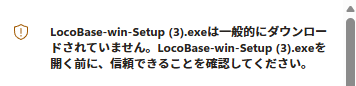
Because LocoBase does not yet have a code-signing certificate, browsers such as Edge and Chrome may show a warning like “LocoBase-win-Setup.exe is not commonly downloaded” when you save the installer. This is not caused by a virus or malicious software.

Example of the Edge browser download warning

Workaround (Microsoft Edge)

  1. 1 After the download completes, click the … button in the download bar and select Keep.
  2. 2 If a confirmation dialog appears, click Show more → Keep anyway.
  3. 3 Run the installer as normal.

[Known Issue 2] False positives from antivirus software

LocoBase does not yet have an OV code-signing certificate. As a result, Windows Defender SmartScreen and some antivirus programs may flag it as an unknown application and block installation or automatic updates. This is not caused by a virus or malicious software — it is Windows’ default behavior for unsigned executables.

Workaround

  1. 1 If a SmartScreen warning appears during installation, click More info and then Run anyway.
  2. 2 If your antivirus quarantines or deletes files, add the LocoBase installation folder (default: %LOCALAPPDATA%\LocoBase) to your exclusion list.
  3. 3 If automatic updates are blocked, download the latest installer from this site and reinstall manually.

About malware risk

LocoBase installers are produced by an automated GitHub Actions build pipeline. Each release is built directly from a specific source-code commit with no manual step where a binary could be tampered with. This makes the risk of malware injection significantly lower than with manually distributed software. The build workflow is publicly visible on GitHub and can be audited by anyone.

The root cause of all these warnings is the absence of an OV code-signing certificate. Once we obtain one for the stable release, the browser warnings and SmartScreen prompts will go away entirely. We apologize for the inconvenience.

Features

What’s Included

All core terminal features are available on the Free plan

Feature Free Pro $10/mo
Multi-session vertical tabs
Core terminal operations
Split pane (up to 2 panes)
Split pane (3+ panes)
In-app browser pane
File explorer pane
Named Pipes API / claudemux CLI
Automatic updates
7-day free trial included Try Free Get Pro

Pricing

Plans & Pricing

First 100 customers — $5/mo (reg. $10)
Coupon code: EARLY100

Monthly

Billed monthly

$10 /mo
  • All Pro features
  • 7-day free trial
  • Cancel anytime
Subscribe

After the 7-day free trial, billed $10/month automatically

Recommended

Yearly

Billed annually — save 20%

$96 /yr

Equivalent to $8/mo · 2 months free

  • All Pro features
  • 7-day free trial
  • 20% off vs Monthly
Subscribe

After the 7-day free trial, billed $96/year automatically

Lifetime

One-time purchase

$199

Own it forever

  • All Pro features, forever
  • 7-day free trial
  • All future updates included
Purchase

One-time payment. No automatic renewal.

All plans include a 7-day free trial. No credit card required to start.

Requirements

System Requirements

OS
Windows 10 (1809 or later) / Windows 11
Architecture
x64
.NET Runtime
.NET 8 Runtime (bundled with the installer)
Claude Code
Optional — install separately for AI-assisted coding

Changelog

Release History

Latest 5 releases

v0.44.0

### 新機能

  • ターミナルのフォントサイズを設定できるようになりました — 設定 > シェル > ターミナル表示 から、文字の大きさを 8 から 32 の範囲で指定できます。変更は開いているすべてのターミナルにその場で反映されます。
  • ディスプレイの拡大率に追従するかを選べるようになりました — 同じ画面のチェックボックスで切り替えます。通常はオフのままで構いません。オフでも Windows の拡大率に合わせて表示は拡大されます。オンにすると拡大率をさらに上乗せするため、文字を大きくしたい高 DPI のディスプレイ向けの設定です。

修正

  • 起動直後にターミナルの表示が乱れる問題を修正 — ターミナルを開いた直後に文字の大きさと桁数が変わり、最初の出力が折り返し直されて崩れることがありました。文字サイズをターミナルの生成前に確定させることで、開いた時点の桁数のまま表示されるようになりました。
  • 文字サイズを変えたあとに折り返しが崩れる問題を修正 — 画面側の桁数だけが変わり、シェルには古い桁数が伝わったままになっていました。文字サイズの変更がシェルへ正しく伝わるようになりました。
  • 高 DPI のディスプレイで文字が大きくなりすぎる問題を修正 — ディスプレイの拡大率が二重に掛かっていました。この修正により、高 DPI の環境では従来より文字が小さく表示されます。これが本来の大きさです。以前の見た目に戻したい場合は、設定でフォントサイズを大きくするか、拡大率に追従する設定を有効にしてください。
v0.43.2

### 修正

  • 保存済みのライセンスキーが予期せず消える問題を修正 — ライセンス情報の保存処理に、キーを知らない書き込みが既存のキーを消してしまう経路がありました。今後は、設定画面で「ライセンスを解除」した場合以外に、保存済みのライセンスキーが失われることはありません。キーを復号できない場合や、別のプロセスが同じタイミングで書き込んだ場合も、保存済みのキーはそのまま保持されます。
  • ライセンスキーの保存に失敗したときにその場でエラーを表示 — 以前は保存に失敗しても適用済みとして表示され、次回起動時に突然 Free に戻ることがありました。保存に失敗した場合は適用時にエラーとして表示されます。
  • ライセンス情報ファイルが読み取れない・壊れている場合の保護 — 読み取れないファイルは上書きせず、壊れているファイルは別名で退避してから初期化するようにしました。
v0.43.1

### 修正

  • ペインを閉じたときに「予期しないエラー」が表示される問題を修正 — 分割しているペインのうち、使用中ではない方のターミナルを ✕ で閉じると、直後に「Cannot access a disposed object」というエラーダイアログが出ることがありました。閉じた直後のペインにキーボードフォーカスを戻そうとしていたことが原因です。
  • ペインを閉じたあとの入力先を修正 — ペインを閉じたあと、残ったペインへ自動でフォーカスが移るようになりました。閉じたあとにキー入力がどこにも届かないことがありません。
v0.43.0

### 新機能

  • 使用中のグループ・セッションをサイドバーの上位に自動で並べ替え — 直近に使ったグループほど一覧の上に並ぶようになりました。グループを切り替えたとき、セッションを切り替えたとき、配下のセッションで応答が完了したときに上位へ移動します。グループが多くても目的の場所まで縦にスクロールする距離が短くなります。設定 > 一般 > サイドバー でオフにできます (既定はオン)。
  • 使用中のグループ以外を自動的に折りたたむ — グループを切り替えると他のグループが閉じ、一覧の縦の長さを抑えられます。折りたたまれたグループのヘッダーには、中のセッションの応答完了・承認待ちの件数がバッジで表示されるので、閉じていても取りこぼしません。設定 > 一般 > サイドバー から有効にできます (既定はオフ)。
  • 応答完了を検知したときにも通知 — エージェントからの通知が届かない設定でも、ターミナルの表示から応答の完了を検知して通知するようになりました。同じ応答について二重に通知されることはありません。設定 > 一般 > 通知 でオフにできます (既定はオン)。

修正

  • 応答完了の通知が表示されないことがある問題を修正 — Windows 側でアプリの通知がオフになっている場合に、通知が表示されないまま消えてしまうことがありました。通知の許可状態を確認したうえで、タスクトレイからの通知へ自動的に切り替えるようにしました。集中モードなどで通知そのものが抑止される環境でも、サイドバーのセッションが点灯してお知らせします。

改善

  • 並べ替えでクリックを取り違えないように — マウスがサイドバーに乗っている間とドラッグ中は並べ替えを保留し、離れた時点でまとめて反映します。クリックしようとした項目が直前に入れ替わることがありません。ドラッグで手動並べ替えした順序は、自動の並べ替えより優先されます。
  • サイドバーの並び順はアプリを再起動しても維持されます。ターミナルの表示位置 (左右の並び) は、並べ替えの影響を受けません。
v0.42.0

### 新機能

  • 応答が完了したセッションをサイドバーの上位に表示 — エージェントの応答完了を検知すると、そのセッションをサイドバーのグループ内先頭へ自動的に移動します。複数セッションを並行して走らせているとき、応答が返ってきたセッションをひと目で見つけられます。ターミナル本体の表示位置は変わらず、ドラッグで手動並べ替えをした場合はそちらが優先されます。設定 > 一般 > サイドバー でオフにできます (既定はオン)。

All releases →

FAQ

Frequently Asked Questions

Q. Can I use LocoBase without Claude Code?
A. Yes. LocoBase is a general-purpose multi-terminal for Windows that runs PowerShell, cmd, Git Bash and WSL. Claude Code is optional — the built-in browser, file explorer and Named Pipes API are there to make AI-assisted coding easier, but nothing requires it.
Q. How is it different from Windows Terminal?
A. Windows Terminal also has tabs and panes. LocoBase adds a vertical tab sidebar that lists every session at a glance, a browser pane and a file explorer pane inside the same window, and a Named Pipes API for driving sessions from outside. It is designed for running several AI coding sessions side by side.
Q. Is Mac or Linux supported?
A. LocoBase is Windows-only. Mac and Linux are not on the current roadmap.
Q. What happens after the trial period ends?
A. After the 7-day trial, you are automatically moved to the Free plan. You can continue using all Free plan features without interruption.
Q. What if I lose my license key?
A. You can reissue your license key yourself from the reissue page. (Japanese form)

Have another question? Contact support

Try It Free Today

Full Pro access for 7 days, no strings attached

Windows 10/11 · x64 · Free tier · Multi-terminal